
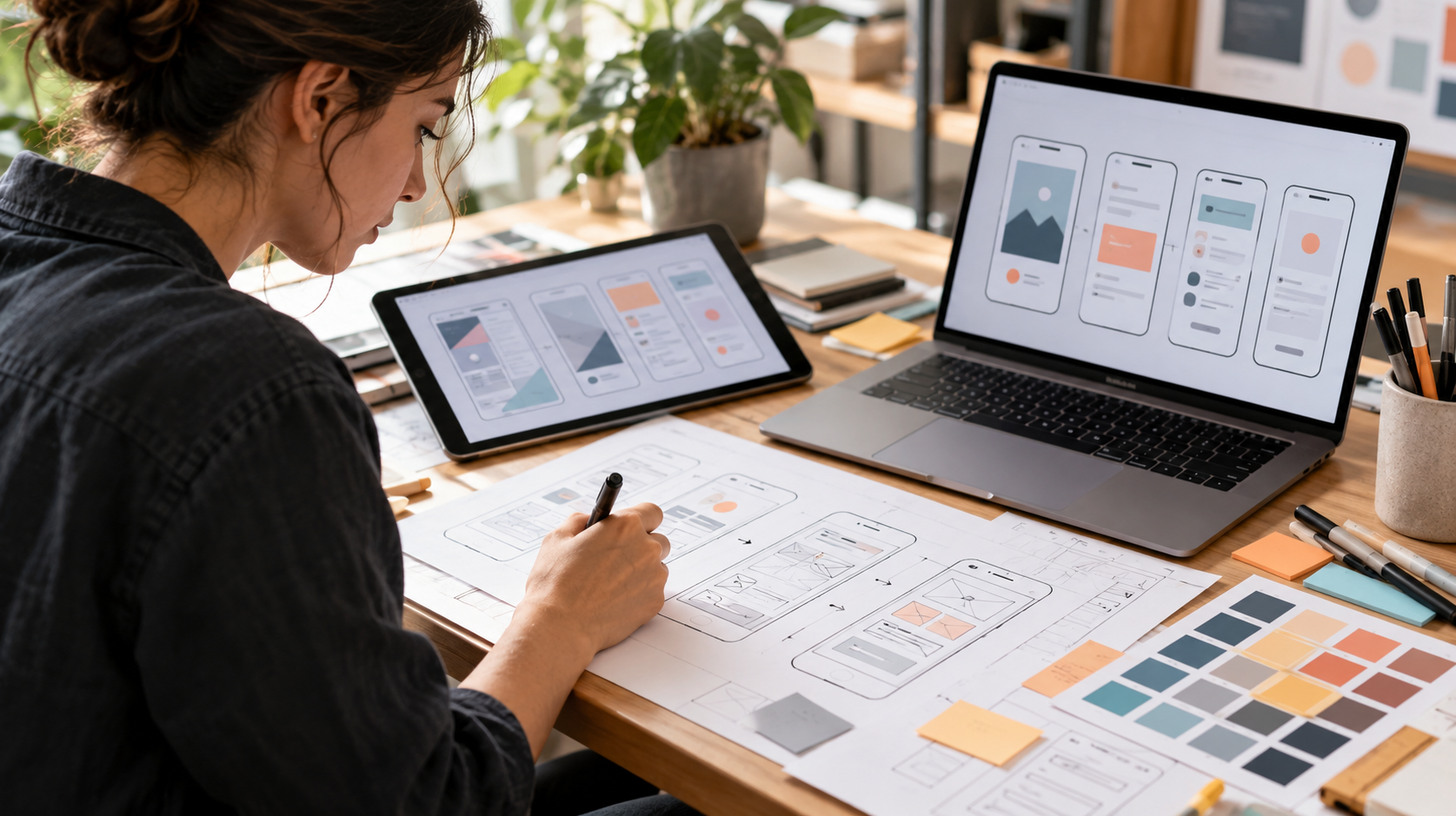
Apps help us order dinner, manage schedules, connect with friends, and plan trips. The best ones solve a specific problem without making people work harder. If you’re wondering how to design a mobile app, start with the people who will use it, not the screens they’ll see.
App design and development bring together research, interface design, prototyping, coding, and testing. You don’t need to master every discipline, but a clear process helps. This guide covers the journey from idea to launch, with examples and practical tools.
You’ll learn how to plan your app, compare iOS and Android development, and explore effective designs.
5 steps to design an app
Designing an app is easier when you break it into clear stages. Follow these five steps to move from a rough idea to a polished, launch-ready product.
Step 1: Define your app idea
Every successful app begins with a clear problem to solve. Before deciding on features, check whether your idea meets a real need. This stage of the app building process keeps you from investing in features no one will use.
Identify the problem or need
Ask what the app will do, who will use it, and why existing options aren’t enough. What task should feel easier? How does it fit your mission? These questions shape the design of an app before a single screen exists.
People asking how to make a mobile application often start by listing features. Instead, write a one-sentence problem statement. For a habit tracker, the goal might be recording daily progress in seconds.
Conduct market research
Study competing apps and reviews to spot gaps and common patterns. A SWOT analysis can reveal strengths, weaknesses, opportunities, and threats. Use findings to refine your concept, not copy another product.
Define your target audience
Interview prospective users about their routines and frustrations. Ask about recent experiences, not hypothetical needs. A few conversations may challenge your assumptions.
Create user personas
Build simple personas around goals and obstacles, and use them to prioritize. Learning how to create a mobile application is as much about making decisions for a particular audience as it is about learning tools.
Step 2: Design your app
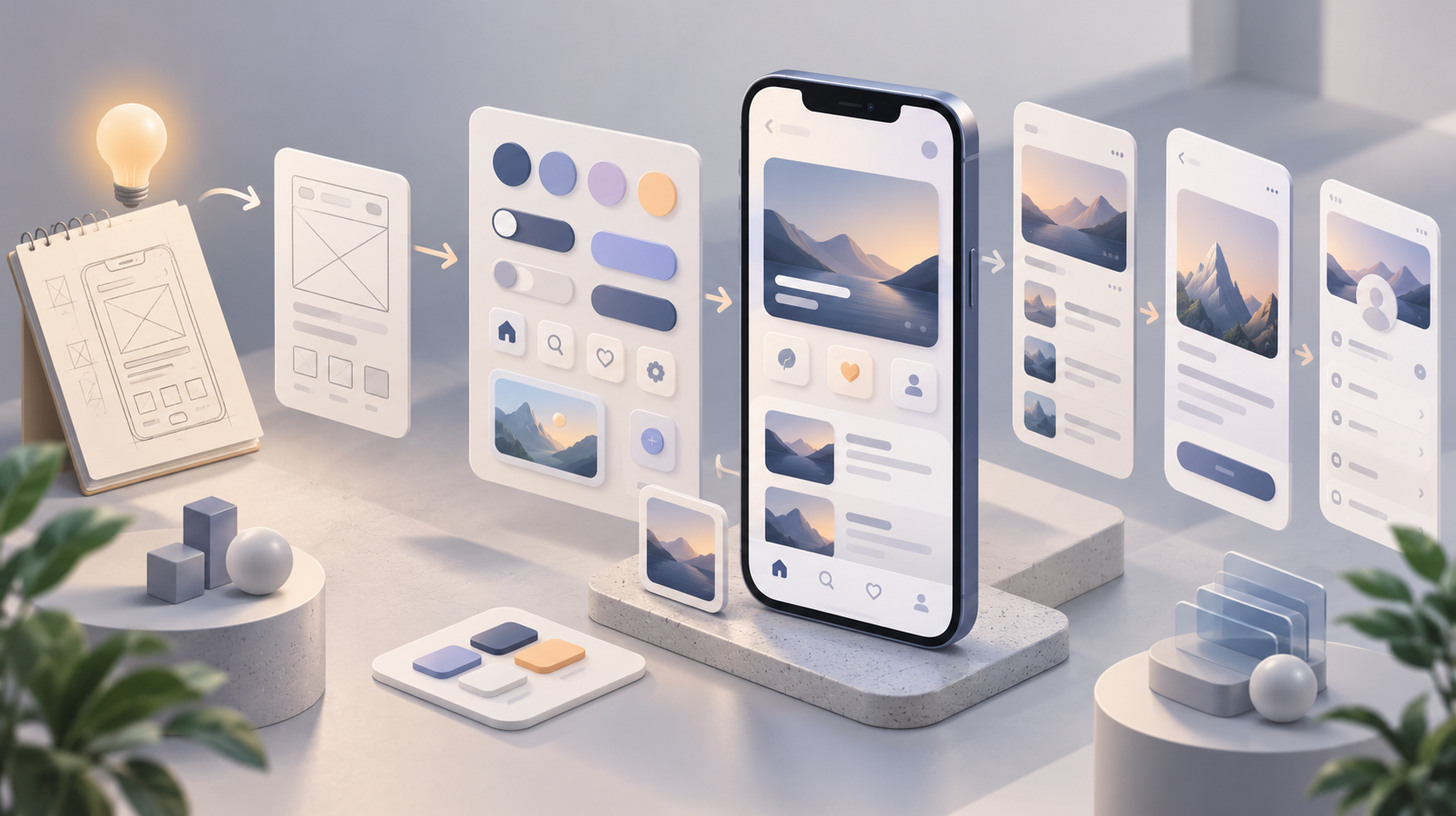
Once you’ve validated the concept, move to screens. UI covers buttons, menus, icons, and typography; UX covers how easily people complete tasks. Strong app user experience depends on both.
When designing a mobile app, think about the complete journey rather than isolated screens. Basic app design starts with clear navigation, consistent patterns, and a useful first screen. If you want to know how to design mobile app UI, begin with the actions users need most, then make those actions easy to find.
Outline core functions and features
List features that support your app’s goal: search, payments, location, notifications, support, tracking, reviews, or personalization. Choose only what users need, and record priorities in a product requirements document (PRD).
Uber connects riders with drivers through GPS, pickup and drop-off selection, trip updates, and payment. Its interface shows what’s needed at each stage rather than every option at once.
Create wireframes
Wireframes map content, navigation, and actions before styling. Sketch the main screens and connect them into a path. This low-fidelity stage reveals missing steps before polished visuals are in place.
Application design software such as Figma helps teams explore layouts and collaborate. If you’re exploring how to use Figma to design an app, start with frames for your primary screens, reusable components for shared controls, and a basic flow between them. Figma Make can turn a prompt into an editable concept to refine.
Choose your color palette and typography
Once the structure works, design the app’s visual language. Choose legible type, accessible contrast, consistent spacing, and colors that indicate priority and feedback. Calm uses blue tones to support a relaxing experience, while DoorDash uses bold red accents that suit its delivery-focused brand.
Label actions clearly, keep buttons consistent, leave room for longer text, and check screen sizes. When making mobile app layouts, avoid adding decoration that competes with the main task. Small decisions in hierarchy and spacing have a big effect on usability.
Step 3: Build prototypes
A prototype turns your screen designs into a testable experience before engineering begins. It helps you see whether navigation, interactions, and transitions make sense. If you’re learning how to prototype an app, begin with one important task, such as signing up or checking out, and connect only the screens needed to complete it.
Create user flows
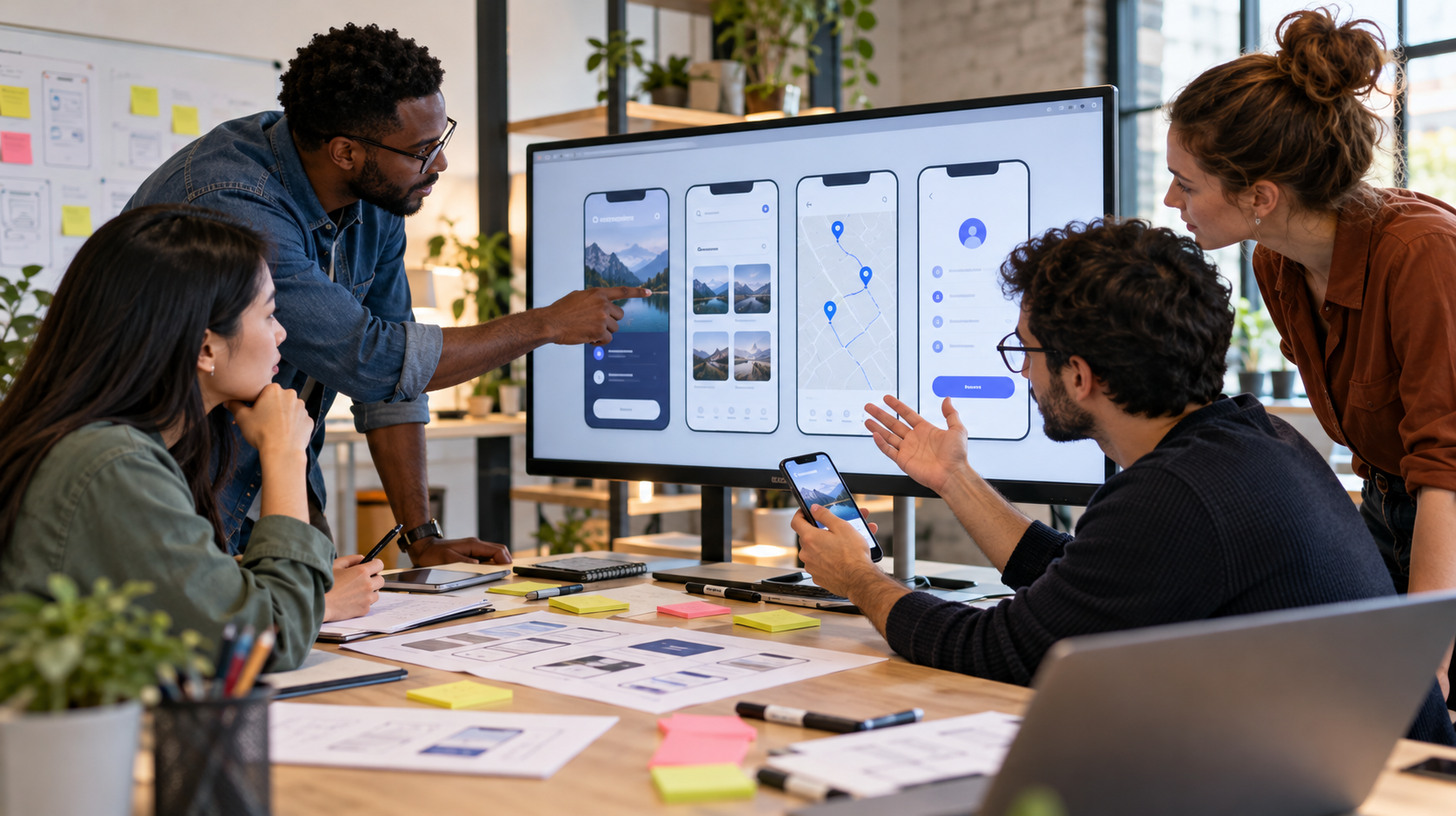
Map each step users take to reach a goal. In a shopping app, someone might browse an item, view details, add it to a cart, and pay. Create a screen for each meaningful decision and test whether the next action is obvious. Try the flow with someone outside your team. If they ask what to do next, revisit the screen order or labels.
Organize app content
Information architecture determines what belongs together and how people find it. Use card sorting to understand users’ mental models, label menus clearly, and add search or filters where useful. Netflix’s genre categories offer a familiar example of content organized for discovery.
Prioritize app features
For a first version, fewer features often produce a clearer experience. The MoSCoW framework separates must-haves, should-haves, could-haves, and won’t-haves. Prioritize what helps people complete the core task; save optional ideas for later versions.
Design for interactivity
Add interactions where feedback matters: a button changes state when tapped, a form explains an error, and a saved item confirms the action. Subtle animations can make the experience more understandable, but they should not slow users down or replace clear labels.
Wondering how to use Figma for app design beyond static screens? Connect frames in a prototype, test key paths, and revise what feels confusing. Figma Make can help turn designs and prompts into interactive prototypes for experimentation. Share the result with people outside the project and watch where they hesitate.
Those observations are often more useful than asking whether they like the colors. Ready to bring your app to life? Explore Figma Make to experiment with interactive ideas before coding.
Step 4: Begin development
Once flows and interactions are tested, turn the prototype into a working product. Design and engineering should stay in contact: technical constraints can affect interactions, while design decisions influence the work required to build them. A shared app design development plan helps both teams agree on priorities and handoff details.
Choose your app type
How to build a mobile application depends partly on where it will run. Choose an approach that suits your audience, budget, and product requirements:
- Native apps: Built for iOS or Android, with direct access to device features and platform-specific experiences.
- Cross-platform apps: Share much of their code across operating systems, which can simplify maintenance.
- Hybrid apps: Use web technologies inside an app container, with trade-offs in capabilities and performance.
- Progressive web apps (PWAs): Run through the browser and can provide app-like features without a conventional store install.
If you’re researching how to build a phone app, the right answer isn’t always native development. Consider which device features you need, how the product will be distributed, and how much platform-specific polish matters.
Start coding
Frontend work implements screens, controls, and navigation. Native iOS teams often use Swift; Android teams commonly use Kotlin. Cross-platform projects may use Flutter or React Native. Backend work handles data, accounts, permissions, and connections to external services.
Figma’s Dev Mode supports handoff by helping developers inspect designs and copy relevant code snippets or specifications. Keep designers involved during implementation so the finished product matches the tested flows, not just the appearance of static screens.
Create an MVP
A minimum viable product (MVP) contains the features necessary to deliver the core value. If your goal is to learn how to make a good app, build the smallest useful version first. An MVP creates a practical way to validate the experience with real users before investing in a larger release.
Gather early feedback
Ask participants to perform realistic tasks, then note where they hesitate, backtrack, or get stuck. Stripe’s team uses a practice called friction logging, or “walking the store,” to experience a product firsthand and identify obstacles. Fix the most disruptive problems before expanding the feature set. Keep a shared list of issues and priorities so each revision has a clear purpose.
Step 5: Test, iterate, and launch
Before release, check more than whether the app works on your own device. Good testing protects usability, reliability, and trust. Teams designing mobile app experiences should assess both the interface and the conditions in which people actually use it.
Run tests and implement feedback
- Usability: Can people finish essential tasks without help?
- Accessibility: Can people navigate, read, and operate the interface with different needs and assistive technologies?
- Performance: Does the app respond quickly and use device resources responsibly?
- Compatibility: Does it behave consistently across supported devices and operating system versions?
- Quality assurance: Are key features stable, with errors and edge cases handled clearly?

Make changes based on findings and rerun the relevant tests before the release. Testing is a cycle, not a final checkbox. Check smaller screens and slower connections, too: an app that feels effortless on one device may behave differently on another.
Submit to app stores
Prepare store descriptions, screenshots, privacy information, and any required disclosures. Apple and Google Play have their own review and publishing requirements, so check the current guidelines for the platform you’re targeting.
Continuously improve
After launch, track completion rates, abandoned flows, feature adoption, and reviews. Use these signals to decide what needs attention next. Improvements to onboarding, accessibility, or clarity may help more than adding another feature. The best app design tips remain useful after launch: keep listening, simplify what is confusing, and test each meaningful change.
iOS vs. Android development
Choosing iOS, Android, or both affects your design and development decisions. Each ecosystem has its own tools, interface conventions, and device requirements. Understanding those differences early helps you plan a more consistent release.
Developing for iOS
iOS apps are commonly built with Swift in Xcode. Apple’s more limited device lineup can make screen testing manageable, but layouts still need to adapt to different sizes, orientations, and accessibility settings. Follow platform conventions for navigation, gestures, and permissions, and test with real devices when possible.
Developing for Android
Android development commonly uses Kotlin and Android Studio. The wider range of screen sizes, hardware, and system versions calls for flexible layouts and broad testing. Pay attention to navigation patterns, text scaling, and how the interface behaves on less powerful devices. On either platform, a good interface respects users’ needs and familiar conventions.
App design examples
Real products show how thoughtful decisions turn a useful concept into an everyday experience.
Example 1: Spotify
Spotify helps listeners discover music, podcasts, and audiobooks through recognizable navigation and personalized recommendations. Sharing features and offline listening support different ways people enjoy audio. Its design keeps discovery and playback easy to access.
Example 2: DoorDash
DoorDash organizes restaurants, grocery choices, and food types with clear categories. Location services, order tracking, notifications, and ratings answer the questions customers have while choosing a meal and waiting for delivery.
Example 3: Instagram
Instagram uses small interactions, such as the animated heart when someone likes a photo, to provide immediate feedback. Camera access, personalized feeds, and straightforward sharing help people move quickly from capturing content to posting it.
The common lesson is simple: start with a real user goal, prototype the path to it, and keep improving. That’s how to turn an idea into an app people return to.